Previously, we have featured how to use AirDrop and AirPlay for iPhone users. Android users also have access to features for sharing video and files, but they are called casting and NFC sharing. This week, we’ll look at casting as a tool to stream movies, show photos on a bigger screen, or mirror your whole device screen on a larger display.
While Samsung phones run on Android, they may use proprietary apps for these functions. More details on that later.
What Are Casting and Screen Mirroring?
Casting and mirroring allow you to send videos, music, or your entire phone screen to another device, usually a smart TV or streaming device.
For example, you can:
- Watch YouTube videos on your TV
- Stream Netflix from your phone to a TV
- Show vacation photos on a larger screen
- Mirror your phone during presentations
Common types of devices you can cast or mirror to include Chromecast, some Smart TVs, Roku devices, Amazon Fire TV devices, and some Blu-Ray players.
These options are especially helpful when you want a bigger viewing experience without needing cables. For casting or mirroring to work, both devices need to be connected to the same Wi-Fi network. It is helpful to note the difference between casting and mirroring.
Casting
Casting sends content from an app directly to your TV. For example, if you cast a YouTube video, the TV streams the video itself while your phone acts like a remote control. Note that not all apps and streaming devices support casting natively. If your app displays an icon like this: 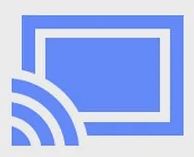 , you can use it to cast.
Benefits:
- Better video quality
- Less battery usage
- You can still use your phone for other tasks
Screen Mirroring
Screen mirroring copies everything on your phone display to the TV.
Benefits:
- Works with almost any app
- Great for presentations or games
- Useful for apps without built-in casting
How to Cast on Android
After confirming that the sending and receiving devices are connected to the same network:
- Open an app that supports casting, such as YouTube
- Tap the cast icon, usually in the top right corner of the app
- A list of available TVs and streaming devices on the same network will appear. Tap the one to cast to. If you don’t see your TV/streaming device after following the troubleshooting tips in this article, your TV/streaming device may not support casting
- After a few moments, the content should appear on the target screen.
Once connected, your phone becomes a remote control for the content being cast. Feel free to use your device for other things – it won’t show up on the target screen.
How to Mirror on Android
If an app doesn’t support casting, try mirroring your screen.
- Swipe down from the top of your screen once (or twice, depending on whether all options are available after the first swipe)
- Look for an option labeled cast, screen cast, wireless display, or Smart View and tap it
- Select your TV or streaming device from the list
- Your phone screen should appear on the target screen
Note that everything you do on your phone, including notifications, will be visible on the target screen.
Samsung Variation
Samsung uses a feature called Smart View for both casting/mirroring. To access it, swipe down from the top of the screen twice, opening Quick Settings.
- Tap the Smart View icon
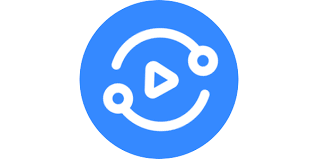 to see a list of available displays
 - Select the target display. You may need to approve the connection on the TV
- Your entire phone screen appears on the display
Pro tip: If you are using a supported app on the source device, selecting the native casting option will deliver a better quality experience than Smart View. The video quality is better, the battery drain is less, and you can still use your phone for other things.
Common Troubleshooting Tips
Here are the most common issues beginners run into.
- TV not showing up. Try: checking Wi-Fi connections, restarting the TV, restarting the phone
- Video keeps buffering. Try: moving closer to the Wi-Fi router, reducing network traffic, restarting your internet modem
- Casting disconnect often. Try updating your streaming apps, Android software, and Smart TV firmware
Summary
Who needs cords to connect when you can cast your Android content to other screens? Casting can be helpful for leisure, work, and everything in between. Stay tuned next week to learn how to quickly share files using NFC.