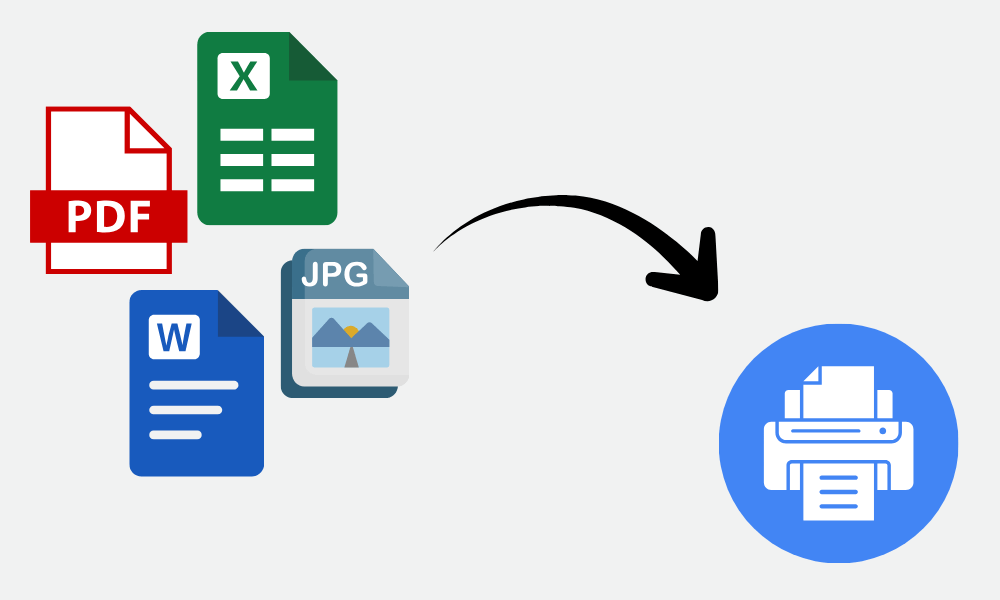
Picture it: the meeting is in five minutes, and you have to print multiple sets of documents before it starts. Opening each document and sending it to print would take far too long. What do you do?
If you are using Windows, you can use a shortcut to print up to 15 documents of the same file type (e.g., PDF or DOCX) without opening each one.
Rules and Limitations
Besides the requirement that all files be the same type, there are a couple of limitations.
- Limit 15 files
- Files must reside in the same folder
- You may need to approve permissions for some files to print (PDF). This can happen when a PDF is downloaded from Canva or another source that Adobe doesn’t consider trusted.
If you’d like to increase that limit and have experience editing the computer’s registry, you can edit a registry key to change the file limit. Use extreme caution when editing the registry, as a misconfiguration could render your computer unusable.
Sending Files to Print
Follow these steps to print the files:
- Open the folder containing files to print
- Highlight up to 15 files (hold Ctrl to pick specific files, or Shift to select a group)
- Right-click the highlighted selection and select Print

- If you do not see “Print” in the menu, choose “See more options,” then “Print”
If you receive an error printing a PDF, open the PDF and select “Enable all features” in the yellow banner at the top. Then, attempt to print again. Once you dismiss this warning, you can print without issue going forward. To avoid interruptions, you can proactively open the PDFs when they are created to dismiss the warning before you need to print.
Keep in mind that you will not be able to apply print settings to individual documents (such as skipping pages).
Summary
Windows offers a printing shortcut that allows users to print multiple documents of the same type without opening them. Use this feature to save yourself time and clicks.