When Tech-Talk highlights a feature in Word, PowerPoint, or Excel in their newsletter, they are sure to include how to accomplish the same task in Google’s counterpart app. Sometimes, though, the Microsoft app has a fantastic feature that is nowhere to be found in the Google version.
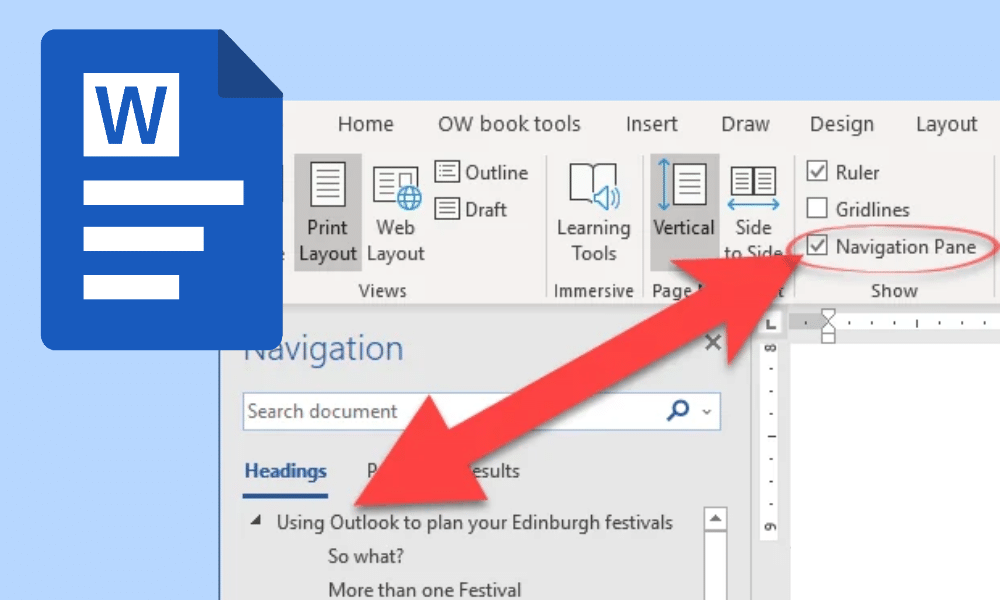
Recently, Tech-Talk shared an article titled, “Three ways to use the Navigation Pane.” While the navigation pane is not available in Google Docs, it is a useful enough feature that it was worth publishing an article that only applies to Microsoft Word.
What Is the Navigation Pane, and Why Would I Use It?
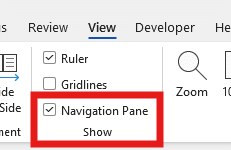
Chances are good that you’ve seen the navigation pane in Word, even if you didn’t realize it. To open the navigation pane, click on View in the top menu, then check the box next to Navigation Pane. Alternatively, use the keyboard shortcut CTRL (find).
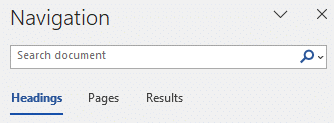
There are three tabs in the navigation pane: Headings, Pages, and Results. Depending on your version of Word, the tabs may use icons instead of text.
Headings
If you have used styles to create headings, the Headings tab offers a hierarchical outline of your document. If not, the heading tab will be blank.
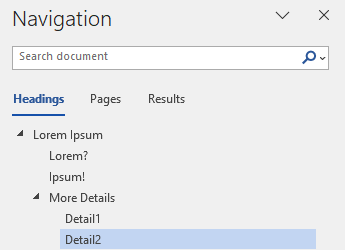
Click on a heading in the navigation pane to skip to that section of the document. While scrolling through your document, the headings in the navigation pane will indicate your current location.
Bonus Tip: View the original Tech-Talk.com article to learn how to use the headings tab to quickly rearrange sections of text.
Pages
Use the Pages tab to see thumbnail images of every page in your document.
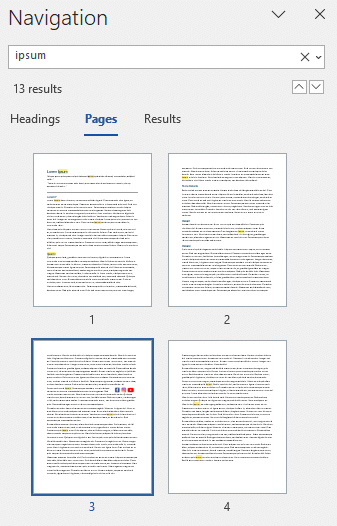
Click on a page in the navigation pane to jump to that page in the document. This is especially helpful for navigation if the layout of text an images in a page makes it easily identifiable. If you have also searched for a keyword, yellow highlights appear where the word is found on the pages.
Results
If you use the Find feature (CTRL) to search for a keyword or phrase, the results pane will list each instance of your search term.
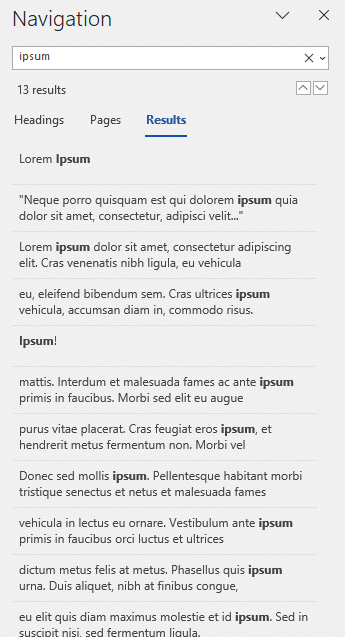
Click on an instance of the search term to jump to that section of the document.
Summary
Use the navigation pane in Microsoft Word to find text and images in your document and navigate to their locations easily. Looking for more tips? Check out our previous posts about Microsoft Office.