Did you know the library’s self-service public copier can also scan documents to be sent via email or saved on a USB device? Even better – the service is free!
Getting Started
By default, the copier will be on the “insert coins” screen. While scanning is free, you may want to bring a quarter with you. To access the scan settings, you must deposit at least $.20 in the vending machine (no bills – they can’t be returned). Otherwise, you’ll need to ask staff for assistance. When your scanning session is over, use the coin return button to return your money.
Scan to Email
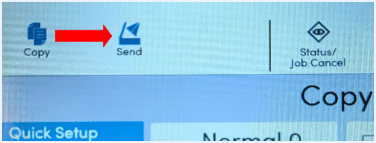
When the “insert coins” screen is gone, tap Send in the top left
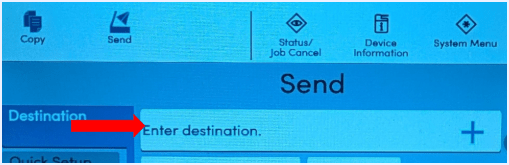
Tap Enter Destination and enter the email address
If you need to edit the scan settings (double-sided original, PDF/JPEG format, special size, etc.), tap the quick setup tab on the left and make the adjustments. Tap OK when finished.
You can either place your document(s) in the top feeder, face up, or place face down on the glass. If you are placing it on the glass, you will need to activate the “continuous scan” setting to scan multiple pages into a single PDF.
Tap “Start” on the right side of the screen when your documents are in place and you are ready to scan. When the blue light stops blinking, the email has been sent.
Scan to USB
Start by plugging your USB drive in the side of the machine, to the right of the touchscreen.
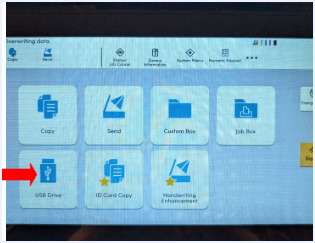
When the “insert coins” screen is gone, tap the “Home” button below the touchscreen. Then tap “USB Drive.”
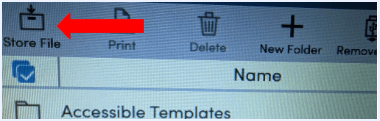
Then tap “Store File” in the top menu.
Set any additional options using the Functions tab on the left. Then tap “Start” on the far right of the touchscreen.
When scanning is complete, tap the Remove USB Drive button and unplug your drive. Press the coin return button to return deposited money.
Summary
The library is here for all of your scanning, printing, faxing, and copying needs. Documents can be scanned to email or USB drive. To learn more about printing to the library’s printer from any location, see this post about wireless printing.