
Do you find yourself repeatedly searching for the same folders and documents throughout the workday? Whether it’s a project folder, a shared team directory, or an important spreadsheet, digging through multiple folders can waste valuable time and disrupt your workflow.
Fortunately, Windows File Explorer and Microsoft Office offer simple features that help you keep your most important files within easy reach. You may have already saved shortcuts to the desktop or pinned items to the start menu or taskbar by right-clicking and selecting Pin to Start or Pin to Taskbar. However, these locations can quickly become cluttered.
You can also pin frequently used folders to Quick Access and mark important Office documents as Favorites, so you can spend less time searching and more time getting work done. These are the methods we’ll look at today.
Pin Frequently Used Folders to Quick Access
Quick Access is a feature in Windows File Explorer that provides instant access to your most-used folders. Instead of navigating through multiple directories, you can open your favorite folders with a single click.
To pin a folder to Quick Access:
- Open File Explorer (aka This PC). For more information about File Explorer, check out the “Not Sure What We Mean by File Explorer?” section of this Tech-Talk article about Quick Access.
- Browse to the folder you use frequently.
- Right-click the folder.
- Select Pin to Quick Access.
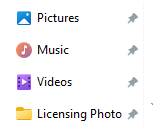
The folder will now appear in the Quick Access section on the left side of File Explorer, making it available whenever you open a new File Explorer window.
Favorite Important Files in Microsoft Office
While Quick Access is ideal for folders, Microsoft Office lets you favorite individual files in applications such as Word, Excel, and PowerPoint.
To favorite a file:
- Open Word, Excel, or PowerPoint.
- Select File > Open.
- Locate the document in your Recent files list or navigate to the folder where the file resides
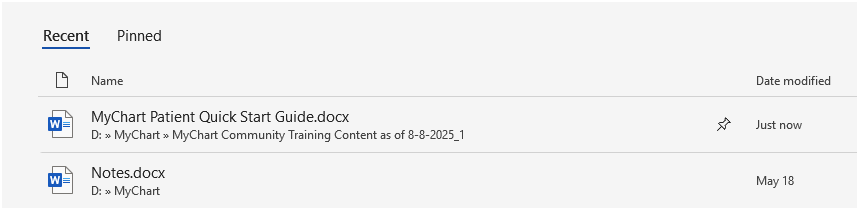
- Click the star (or pin) icon or choose Add to Favorites (depending on your Office version).
Favorited files will remain easy to locate, even as new documents are added to your recent files list from the home screen of the app:
Are you a Google user who wants to mark files as favorites? This Tech-Talk article about pinning contains a section titled “How Favorites Work in Google” to show you.
Create a More Efficient Workspace
Small organizational habits can have a big impact on productivity. By pinning your most-used folders in File Explorer and favoriting essential documents in Microsoft Office, you can eliminate unnecessary searching and keep your important files at your fingertips.


